- The Signal by RPN
- Posts
- How to use Claude with Seedance to Automate Ads
How to use Claude with Seedance to Automate Ads
Claude X Nano Banana X Seedance = 🔥

Roberto Nickson
April 11, 2026
Welcome back to The Signal, a weekly letter where I share stories, trends, strategies and insights to help you level up as a creator or entrepreneur.
Make sure to subscribe so you never miss an email.
Today’s topic:
How to use Claude to automate ad creation with Nano Banana Pro and Seedance

Claude X Seedance = Infinite Ad Creation
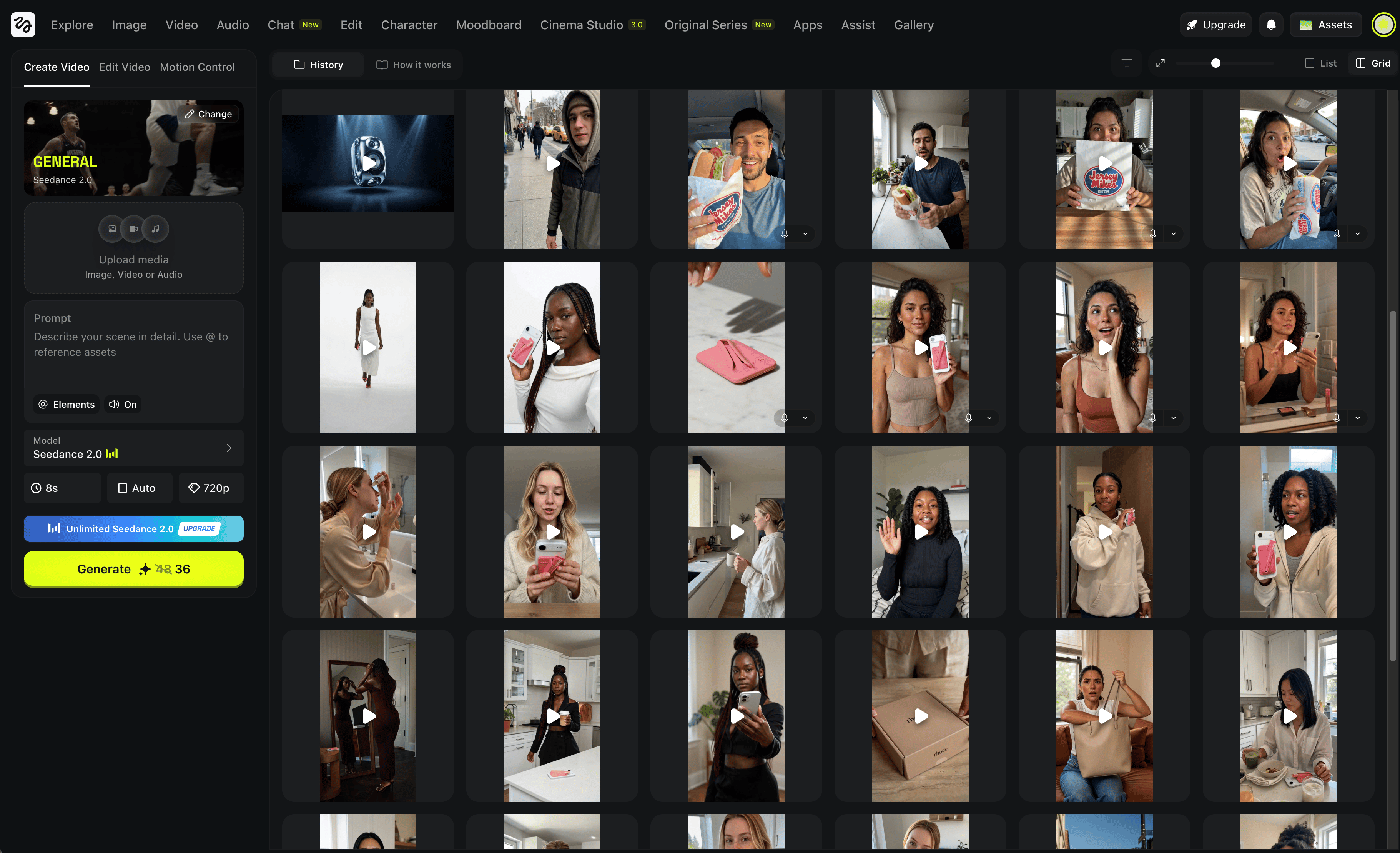
This workflow uses Claude x Nano Banana Pro x Seedance 2.0 on autopilot.
It takes any product, researches winning ad strategies, generates hyper-realistic AI avatars, and produces a library of ready-to-publish UGC videos — without you being in front of the computer.
You can use Claude scheduled tasks to have it run every night while you’re asleep, and wake up with hundreds of outputs to review.
Below is everything you need: what the workflow does, how to set it up, and the full prompt to run it for any product.
What You Need Before You Start
1. Claude Desktop App
Download at claude.ai/download.
Scheduled tasks require Pro, Max, Team, or Enterprise — free plans do not have access to Cowork or Code.
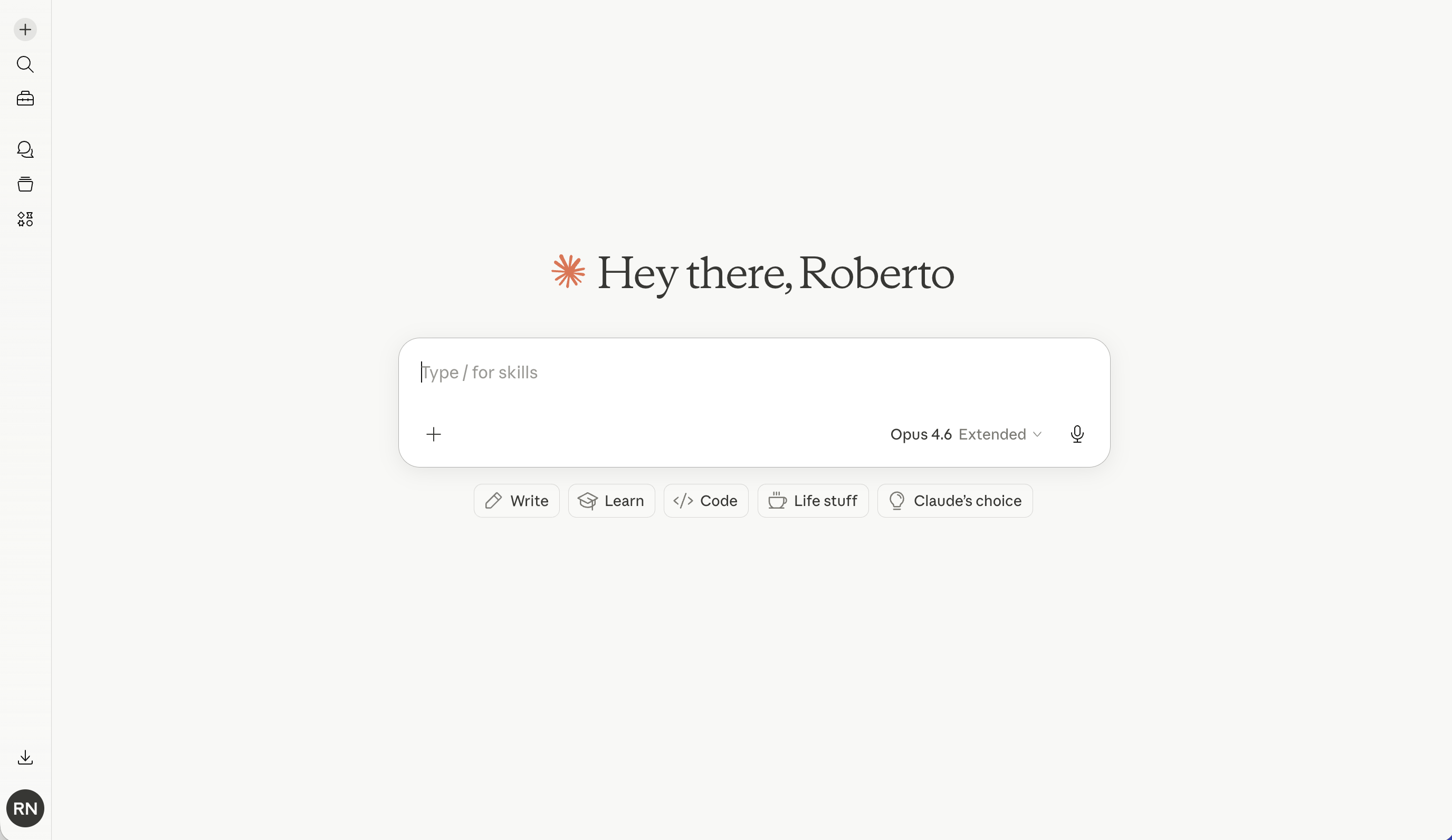
2. Claude Code or Cowork enabled in Claude Desktop
You can use this workflow with Claude Code, but for this example we will be using Claude Cowork, which is the agentic workspace inside Claude Desktop where scheduled tasks live:
Open the Claude Desktop app
Look for the Cowork tab in the left sidebar
If you don’t see it, go to Claude → Check for Updates and update the app
Use Chrome with the Claude extension enabled (important!)
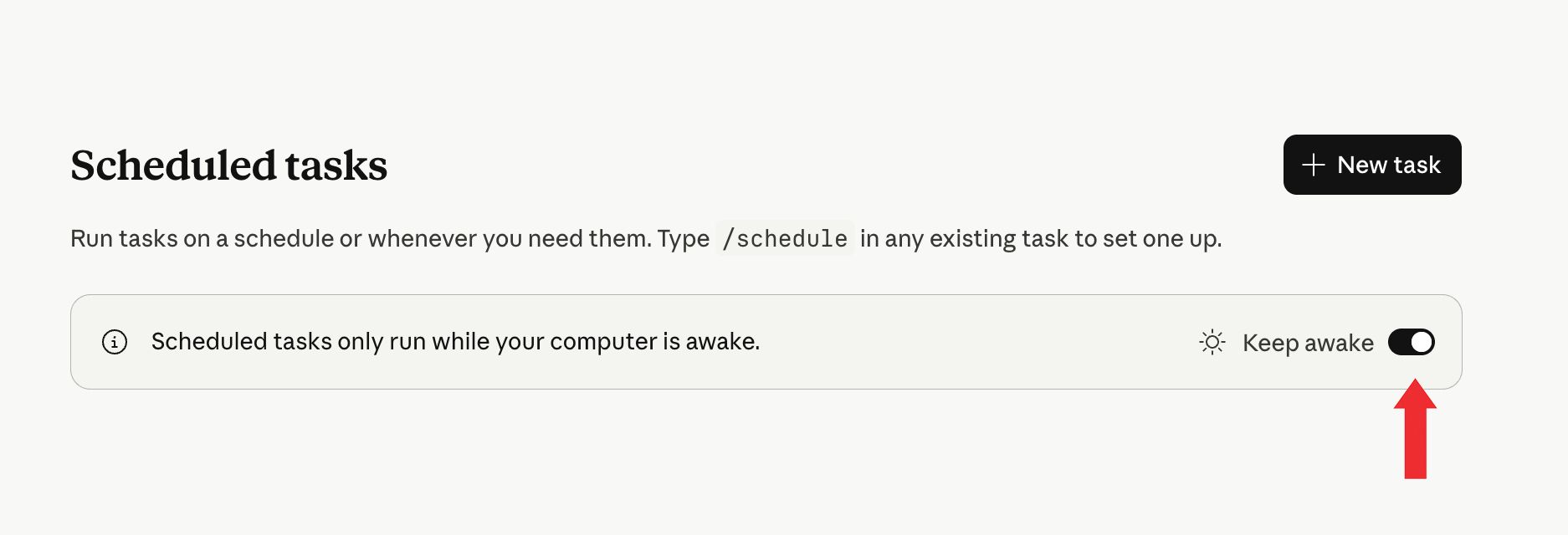
⚠️ Important: Scheduled tasks only run while your computer is awake and the Claude Desktop app is open. If your computer sleeps during a run, Cowork resumes automatically the next time the app is open.
3. A Higgsfield account
Sign up at Higgsfield.
Make sure you are logged in before the workflow runs — the prompt assumes you are already signed in and authenticated.
4. A single folder on your computer

You will need to create a folder for your reference photos. This can be of your products, environments, inspo — etc. Make sure they are in the folder.
For our prompt, you will need the folder’s exact path. Name it “references” — you can change the name to whatever you want as long as you remember to reflect it in the prompt.
To find a folder’s exact path on Mac: right-click it → hold Option → click “Copy as Pathname”. On Windows: hold Shift → right-click → click “Copy as path”.
Note: you can actually skip this part, if you want to add your reference photos directly into Higgsfield, and change the prompt to reflect this.
Let’s Run the Prompt
You can run it manually, or you can have it scheduled.
Let’s go ahead and create a scheduled task.
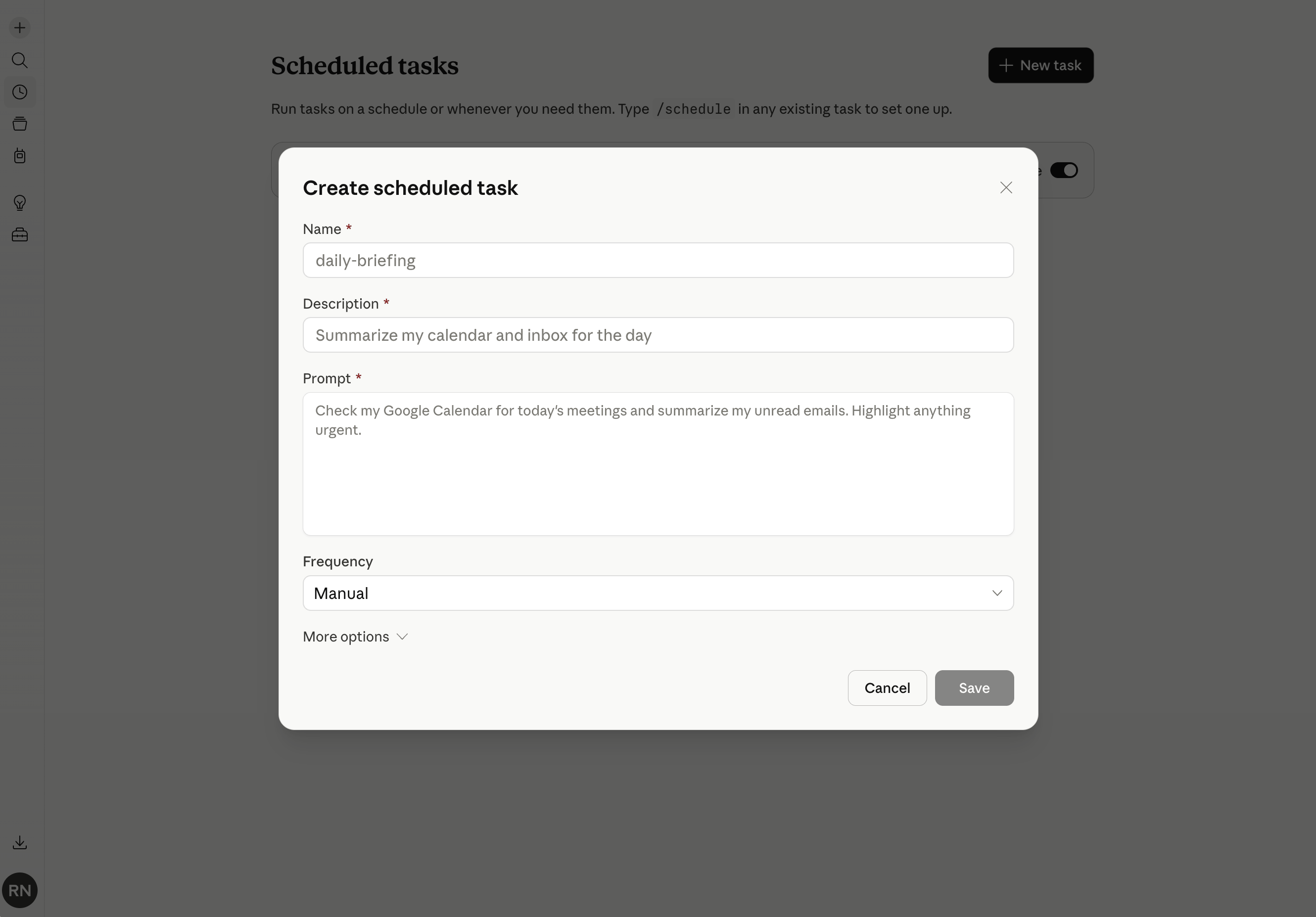
Using /schedule in Cowork
Open Claude Desktop and click the Cowork tab
Start a new Cowork task, type /schedule, and send it
Give your task a name and description
Choose the frequency, and now we will enter our prompt.
The Prompt
Copy everything in the shaded box below. Replace all the highlighted placeholders before pasting into Claude.
You can also paste the prompt into Claude, and ask it — conversationally and naturally — to change it specifically to what you’re trying to achieve.
You are a Claude Computer Use agent. Operate Chrome and Higgsfield directly.
To complete this workflow. Use the browser, keyboard, and mouse as needed.
Do not ask for confirmation between steps.
You are executing a full UGC video production pipeline for [YOUR PRODUCT NAME].
Follow every step in exact order. Do not skip steps. Do not wait for images
or videos to finish generating before submitting the next job.
After each major action output: ✅ [what was completed]
--- PRODUCT UNDERSTANDING — DO THIS BEFORE ANYTHING ELSE ---
Visit and fully study: [YOUR PRODUCT URL]
What this product physically is:
[YOUR PRODUCT DESCRIPTION]
From the product page extract: exact product name and tagline, all features
and selling points, price and variants, exact visual appearance (shape, color,
finish), any social proof, and the brand voice. Understand precisely what the
product looks like in someone's hands from every angle — this physical accuracy
must be reflected in every video prompt.
--- STEP 1 — RESEARCH WINNING UGC HOOKS AND ANGLES ---
Research high-performing UGC content for [YOUR PRODUCT NAME] and its category.
Reverse engineer what makes winning videos stop the scroll and convert. This
research gates everything that follows. Do not proceed to Step 2 until complete.
Search: Meta Ad Library, TikTok, YouTube Shorts, Pinterest, and Google.
For each winning piece of content document:
- First 1–3 seconds: what is happening visually and what is being said
- Hook type: curiosity / problem / desire / shock / identity / humor
- Full narrative arc and emotional triggers activated
- Visual style: environment, lighting, pacing, camera angle, creator aesthetic
- When and how the product appears on camera
- Root cause: 3–5 sentences on exactly why this video works
Compile into a UGC RESEARCH BRIEF:
- Top 5–7 proven hooks ranked by effectiveness
- Top 5–7 visual styles for this product category
- Key emotional triggers that drive conversions
- Recurring language and claims from winning ads
- [NUMBER OF AVATARS] distinct video angles — one per avatar — each with:
hook type, narrative arc, tone, visual style, and the creator persona
and aesthetic that best fits this angle based on winning content
✅ Output confirmation when UGC RESEARCH BRIEF is complete
--- STEP 2 — GENERATE AVATARS IN HIGGSFIELD ---
Generate [NUMBER OF AVATARS] hyper-realistic avatars based entirely on the
creator personas defined in your UGC RESEARCH BRIEF. Let the research determine
gender, age, aesthetic, and energy — do not default to assumptions. Each avatar
must be distinct and look like someone who would genuinely use and post about
this product.
Write every avatar prompt yourself. Each must include:
- Age range and aesthetic grounded in research
- Specific skin tone description
- Skin texture: visible pores, natural texture, zero AI smoothing,
zero retouching — state this explicitly
- One natural imperfection: faint freckles, small scar, under-eye shadows,
or slight uneven skin tone
- Hair: texture, length, color, how it is worn
- Minimal makeup described product by product
- Wardrobe: specific garment, color, fit
- Background: real environment, lighting, color temperature
- Camera specs: body, focal length, aperture
- These exact phrases in every prompt: "photojournalistic realism",
"zero AI skin smoothing", "natural facial asymmetry preserved",
"no plastic skin texture", "no uncanny valley symmetry correction"
- Energy and vibe
Navigation:
1. Open Chrome → navigate to Higgsfield (already logged in)
2. Click Image in the top toolbar → Create Image
3. Confirm model: Nano Banana Pro — Extra Free Gens: OFF
4. Paste prompt → submit immediately — do not wait for generation
5. Repeat for all [NUMBER OF AVATARS] avatars without waiting for any to finish
✅ Output confirmation when all avatar jobs are submitted
--- STEP 3 — GENERATE VIDEOS IN HIGGSFIELD ---
Generate [VIDEOS PER AVATAR] unique videos per avatar. Each must use a different hook, script, angle, and visual style. Every video must feel like something a real person filmed on their own phone — not a produced ad. All decisions must be rooted in the UGC RESEARCH BRIEF.
All videos must be exactly [VIDEO LENGTH IN SECONDS] seconds long.
[VIDEO LENGTH IN SECONDS] must be between 4 and 15. If a value outside this range was provided, default to 10 seconds.
Write all video prompts and scripts before submitting any generation job.
Hook diversity — no two videos may share the same hook. Spread across all videos:
Discovery — Problem/solution — Aesthetic lifestyle flex — Casual GRWM – Honest review — Humor hook — Identity/aspirational — Beauty close-up with voiceover — POV scenario — Dependency hook — Shock hook — Before vs after.
Every hook must land in the first 2 seconds. No slow intros. No filler.
For each video write:
A) Higgsfield Video Prompt (minimum 150 words):
- Avatar: exact appearance, wardrobe, expression, energy
- Product: exact appearance, how it is held and used — physically accurate
and correctly depicted at all times
- Physical actions beat by beat through the full video
- Camera: shot type, angle, movement
- Environment: specific location, full background detail
- Lighting: direction, source, quality, color temperature
- Pacing and realism: handheld feel, no studio polish, no AI artifacting
- Aspect ratio: 9:16 vertical
B) Script:
- Word-for-word dialogue timed to [VIDEO LENGTH IN SECONDS] seconds total
- Tone of delivery noted on every line
- Must sound spoken not written — read it aloud mentally before finalising
Format for every video:
VIDEO [N] — AVATAR [N] — ANGLE: [NAME]
PROMPT: [full visual prompt — minimum 150 words]
SCRIPT:
[0:00–0:02] HOOK: "[line]" — [tone], [framing]
[timestamps continue through full video with tone and action notes]
--- VIDEO CREATION PROCEDURE (follow for every single video) ---
Higgsfield persists inputs between jobs. Clear everything before each new
video or you will generate with the wrong content.
Step A — Clear previous inputs:
1. Check if any reference images are already uploaded. If so, hover over
each image until the X appears and click it to remove it.
2. Clear the prompt text field completely.
3. Verify both image slots are empty and the prompt field is blank.
Step B — Upload reference images:
Upload the product reference photo:
1. Click the "Upload Media" card in the video creation interface.
2. A box pops up. Click "Upload Media" inside that box.
3. Finder opens. Navigate to [YOUR PRODUCT REFERENCE FOLDER PATH].
4. Double-click the product reference photo to select it.
5. Wait for it to fully upload and appear in the box.
6. Click on the product reference photo to select it, then confirm to add it to the video job. Verify it appears in the interface.
Upload the avatar:
7. Click the "Upload Media" card again.
8. The box pops up again. This time click "Image Generations"
instead of "Upload Media".
9. Your previously generated avatars will appear here. Click the correct avatar for this video to select it, then confirm to add it to the video job. Verify it appears in the interface.
Step C — Enter prompt and submit:
1. Paste the video prompt into the prompt field.
2. Confirm model is set to Seedance 2.0.
3. Confirm both reference images are visible.
4. Submit immediately — do not wait for generation to complete.
5. Move to the next video and repeat Steps A through C from scratch.
✅ Output confirmation when all video jobs are submitted
--- OPERATIONAL RULES ---
1. Never wait between submissions — queue everything and move on
2. Clear all Higgsfield fields before every new video — never assume clean
3. Both reference images must be confirmed visible before every video submit
4. Each avatar is used exactly [VIDEOS PER AVATAR] times
5. No two videos share a hook — all opening lines must be distinct
6. Order is locked: product understanding → research → avatars → videos
7. All prompts and scripts written before any video generation begins
8. Product depicted physically accurately in every video prompt
9. Every video prompt minimum 150 words
10. Image model: Nano Banana Pro — Extra Free Gens: OFF
11. Video model: Seedance 2.0 — Aspect ratio: 9:16
--- FINAL CHECKLIST ---
[ ] Product page read and appearance fully understood
[ ] UGC RESEARCH BRIEF complete with one angle per avatar
[ ] All avatar prompts written from research and submitted
[ ] All video prompts and scripts written before generation begins
[ ] Higgsfield fields cleared before every video
[ ] Both reference images confirmed visible before every video submit
[ ] No two videos share a hook
[ ] All video jobs submitted
A Few Things Worth Knowing
This uses real Higgsfield generation credits. The more avatars and videos you run, the more credits it uses — check your plan before running.
Video quality depends on your product reference photo. The cleaner the photo, the more accurately Higgsfield renders the product in your videos.
Claude writes all prompts itself. You are not writing avatar descriptions or video scripts — Claude does all of that from the research it conducts. Better product page copy means better output.
Keep your computer awake. Scheduled tasks only run while Claude Desktop is open. If it closes mid-run, Cowork resumes when you reopen it.
Results will vary. Some generations will be stronger than others. Review the outputs and publish the ones that work.
Interested in custom Claude workflow integrations for you business?
If you are interested in creating custom Claude workflows for your brand or business, we can take on a single client. Please email us with your request.
